 Lekker Sun
Chapter 10 of 12
Printing the report and sending a client proposal
The report brings the whole design together: the system, the price, the shading, the checks, the wiring and the savings. The proposal turns it into a quote your client can accept online.
All chapters
The report
Open the Results tab. The report is built from the current design and Finance inputs, in nine sections:
- Summary: solar and battery size, solar used, solar lost with zero export, self-sufficiency, grid import, saving, system cost and payback.
- Bill of materials with VAT.
- Equipment specifications from the datasheets.
- Compatibility check, with the strings table and, if it's switched on, the wiring diagram.
- Site layout: a plan of the site, each array's yield and shading loss, and the roof heatmap pictures for the year, winter and summer.
- Energy balance: month by month, and a typical week of solar, battery and grid.
- Return on investment, year by year.
- Assumptions.
- Disclaimer.
The report brings itself up to date when you open the Results tab. If it shows Out of date · Update, click it. Recalculate at the top works the figures out again at any time.
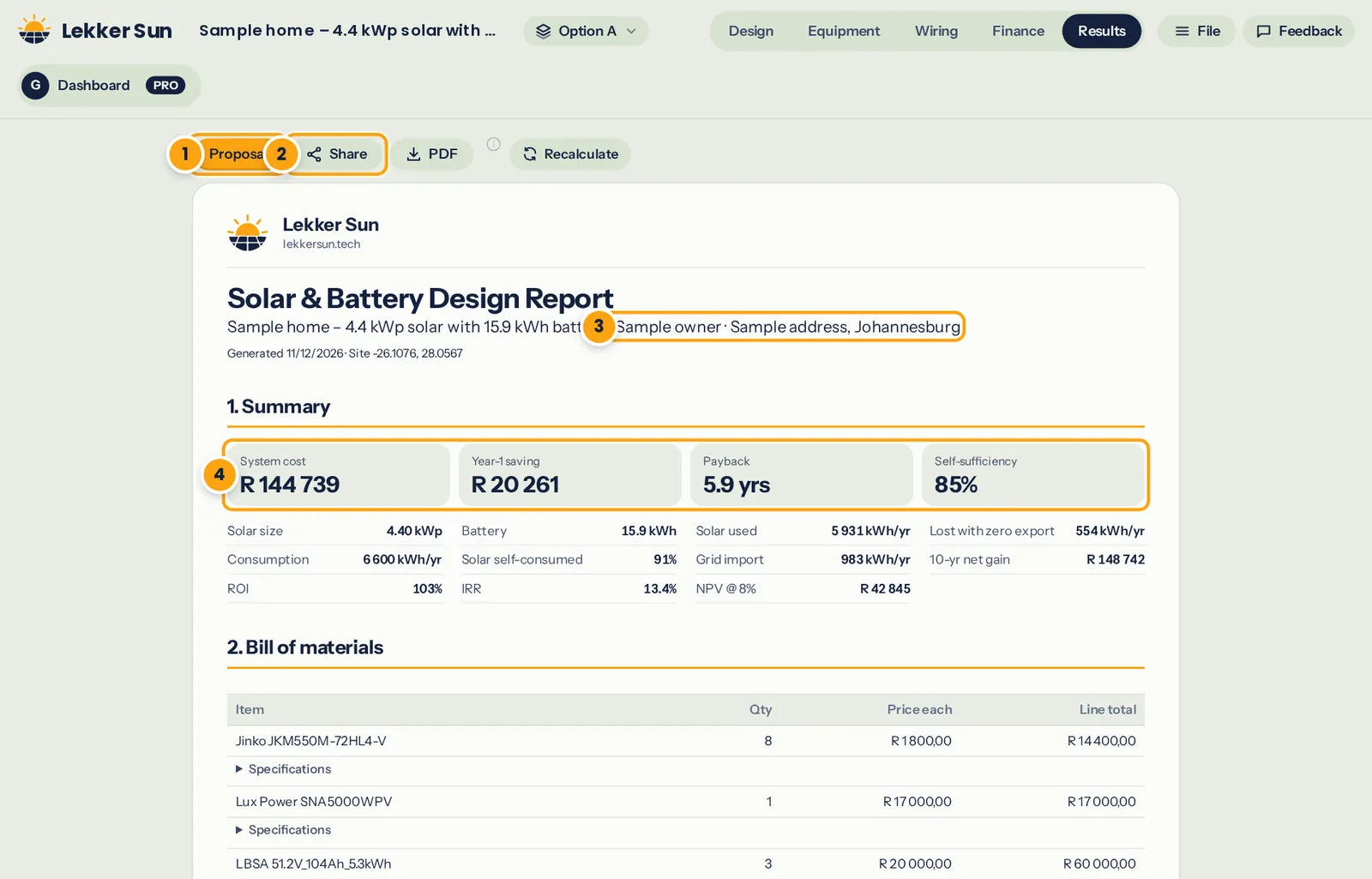
- Proposal.
- PDF and Share: print the report or save it as a PDF, or send a link to it.
- The project ID and site address, on every page.
- The summary figures.
Who sees which report
- Not saved yet, on the free plan: a fixed sample report for a sample home, so you can see every section. Your own report appears once the project is saved.
- Not saved yet, on plans that include it: your own report on screen, with a watermark.
- Any saved project: your own report, without the watermark, ready to print or share.
Print or download the report
Download → PDF opens your browser's print window. Choose "Save as PDF" as the printer to get a PDF to email. Download → Web page (HTML) saves a single web page anyone can open in any browser.
Every page carries the project ID. Anyone can check the report is genuine at lekkersun.tech/verify by typing it in.
Share makes a page with the report that anyone with its link can open, like the proposal. Update link puts your latest version on the same link, and Stop sharing takes the page down.
Your logo and details
Your own branding is not on every plan (the pricing page shows which plans include it). On your dashboard, open Account and fill in Your branding on reports: your logo, company name and two contact lines. They appear at the top of every report and proposal, and on the wiring diagram of saved projects.
Send a client proposal
A proposal is a web page for your client with the system, the savings, the itemised price and your details. They can accept it online, and you're emailed when they do. Any saved project can have one.
- On the Results tab, click Proposal.
- Fill in the quote heading, your name or company and your contact details, and the client's mobile number and email.
- Set how long the quote is valid for (30 days to start with, up to 180) and any discount.
- Add a message, your terms (deposit, lead time, warranty) and your payment details. The client pays you directly.
- Choose whether the client sees the price of every line, or only the items with the totals.
- Click Preview as the client sees it to check, then Publish proposal.
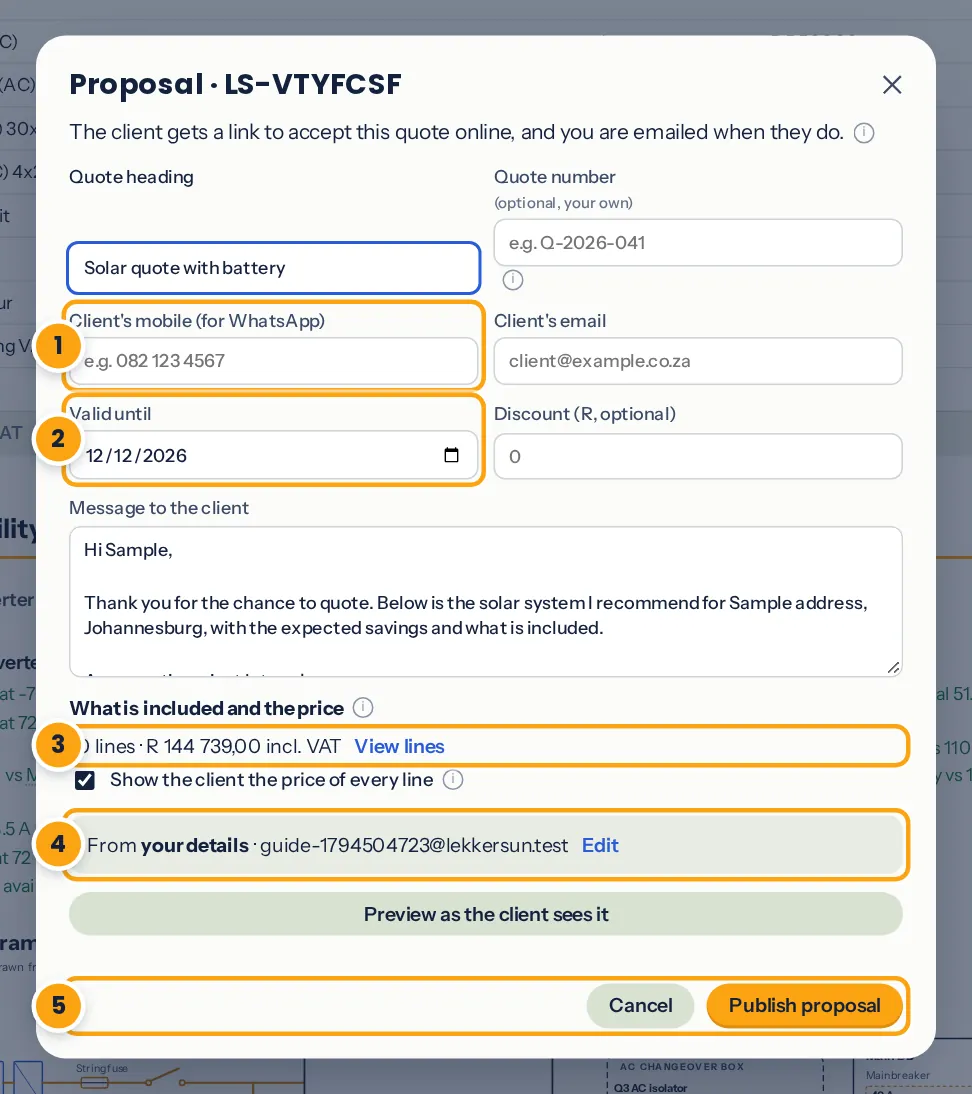
- The client's contact details.
- How long the quote is valid, and a discount.
- The items and prices, from the bill of materials.
- Your details, terms and payment details: the next proposal starts with them again.
- Preview, then publish.
Publishing gives you a link to send by WhatsApp or email. The prices come from the bill of materials, so change lines, prices or VAT there, not in the proposal.
When the client accepts
The client opens the link, reads the proposal, ticks the box and types their name to accept. You both get an email, and the project moves to Accepted in your Projects list.
- Change a published proposal and the client's link stays the same; they see the new version.
- You can withdraw a proposal that hasn't been accepted.
- An accepted proposal is locked, as a record of what the client agreed to.