 Lekker Sun
Chapter 11 of 12
Managing projects and your account
Once the proposal is out, the project lives on in your dashboard. This chapter covers saving and reopening projects, keeping track of clients and projects, and looking after your account and plan.
All chapters
Save and reopen projects
Saving to your account is not on every plan (the pricing page shows which plans include it). Use File → Save project (or Ctrl+S) in the designer to save the project to your account, so you can open it on any computer. After the first save, Lekker Sun saves changes by itself every five minutes.
The first save of a project uses one of the month's projects (or a bought one) and gives it its project ID; saving it again doesn't use another.
On every plan, projects are also kept in the browser you used. To keep one safe or carry on at another computer, use File → Export project, and File → Import project to open it again. File → Load project opens your saved projects on the dashboard.
Tip: Export is handy on any plan: send a design to a colleague, keep a copy of a project before you make big changes, or start a similar project from an old one.
Projects
The Projects tab on your dashboard lists every saved project, with the client, system size, status, project ID and proposal.
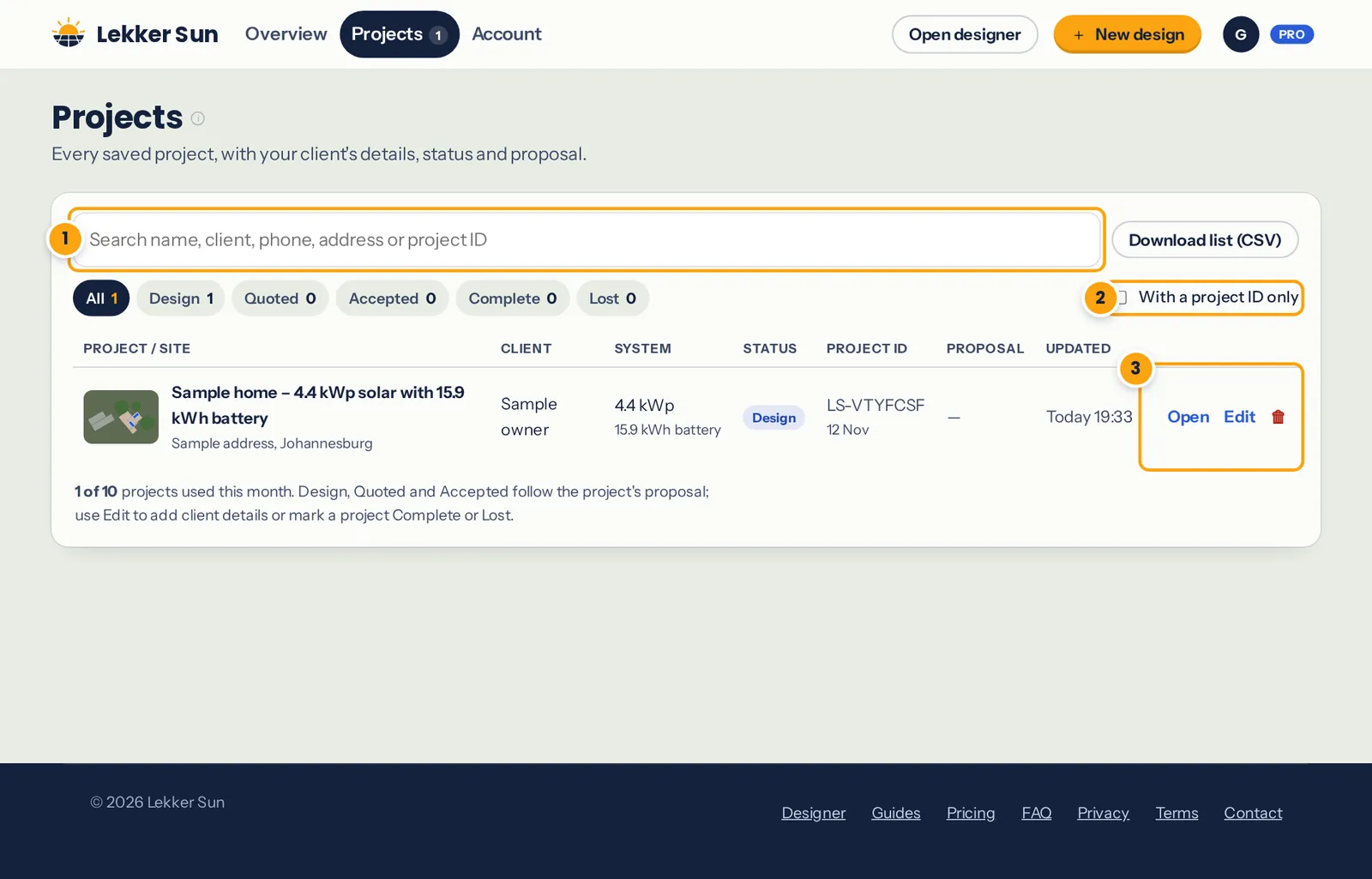
- Search, and download the list as a CSV.
- Filter by status, or show projects with a project ID only.
- Open the design, Edit the client details and status, or 🗑 delete.
The status follows the proposal: Design until one is sent, Quoted once it is, and Accepted when the client accepts. Use Edit to add the client's details and notes, and to mark a project Complete once it's installed, or Lost if the client went elsewhere.
Deleting a project
The 🗑 on a project's row hides it from your list and the designer. Before you do, know that:
- The project still counts. It isn't returned to the month's projects or your bought projects.
- The verify code on printed reports, and any proposal the client already accepted, keep working.
- An open proposal is withdrawn, a shared report link stops working, and its saved design is deleted too.
Get help with a design
If you'd like us to look at a design with you, open Account and click Allow support access for 48 hours. Lekker Sun staff can then open your saved projects, read-only, for 48 hours. You get a reference to quote when you contact us. Access ends by itself.
The Feedback button in the designer's top bar is the quickest way to report a problem or suggest something, with a picture of the map if it helps.
Your plan and billing
Under Account, then Plan and billing:
- See plans to upgrade to Pro, monthly or yearly.
- Manage subscription opens the payment page in a new tab, where you can change the card or cancel. Come back to the dashboard tab afterwards and it updates.
- Have a code? applies an invite or promotional code.
If you cancel, you keep Pro until the end of the period you've paid for. Payments aren't refunded. Once Pro ends, your saved projects stay in your account and you can still export them, but you can't save changes to them until you subscribe again.
Password, data and closing the account
- Password: change it under Account. Forgotten it? Use the reset link in the sign-in window.
- Download my data: your account details and every saved project in one file.
- Delete account: removes the account and everything saved in it straight away, and cancels any subscription. Projects kept in a browser or exported as files aren't affected.